
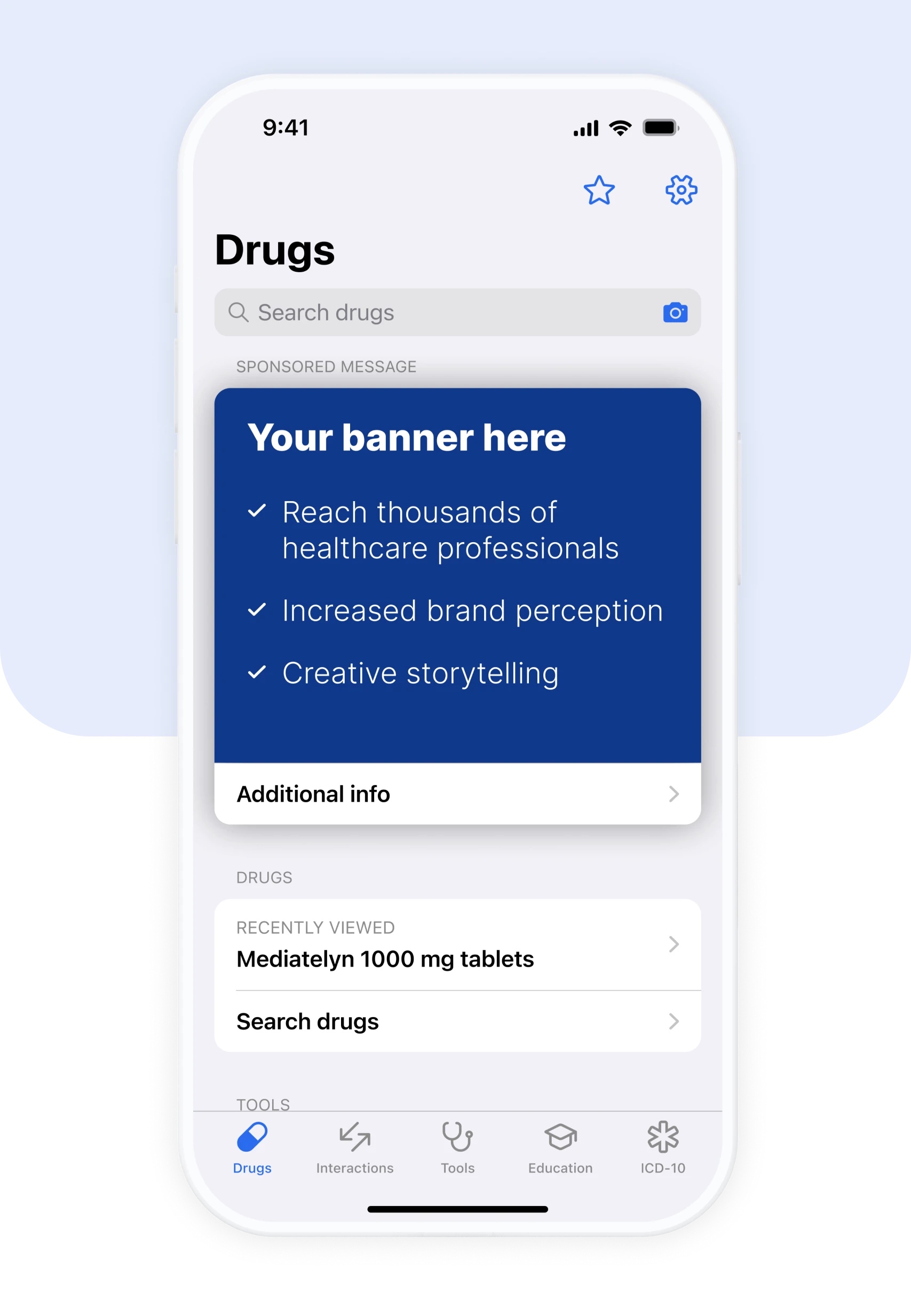
Static banner example:

About
A Front page static banner is displayed every time a user opens the app and each time they return to the home screen during their session. This ensures maximum visibility and repeated exposure. Provide extra information or direct users to more content via a short description under the banner.
Links options
Description text
Max 20 characters. Examples: “Additional information”,“Learn more”, “New guidelines here”.
Format
JPG or PNG image.
Size
We offer three different size options for Home page static banner:
Small
1080 x 195 px

Medium
1080 x 405 px

Large
1080 x 845 px
About
A Tool banner is displayed every time a user opens a specific tool in the Mediately app.
Links options
Format
JPG or PNG image.
Size
We offer two different size options for Tool static banner:
Small
1080 x 195 px

Medium
1080 x 405 px

About Search static banner
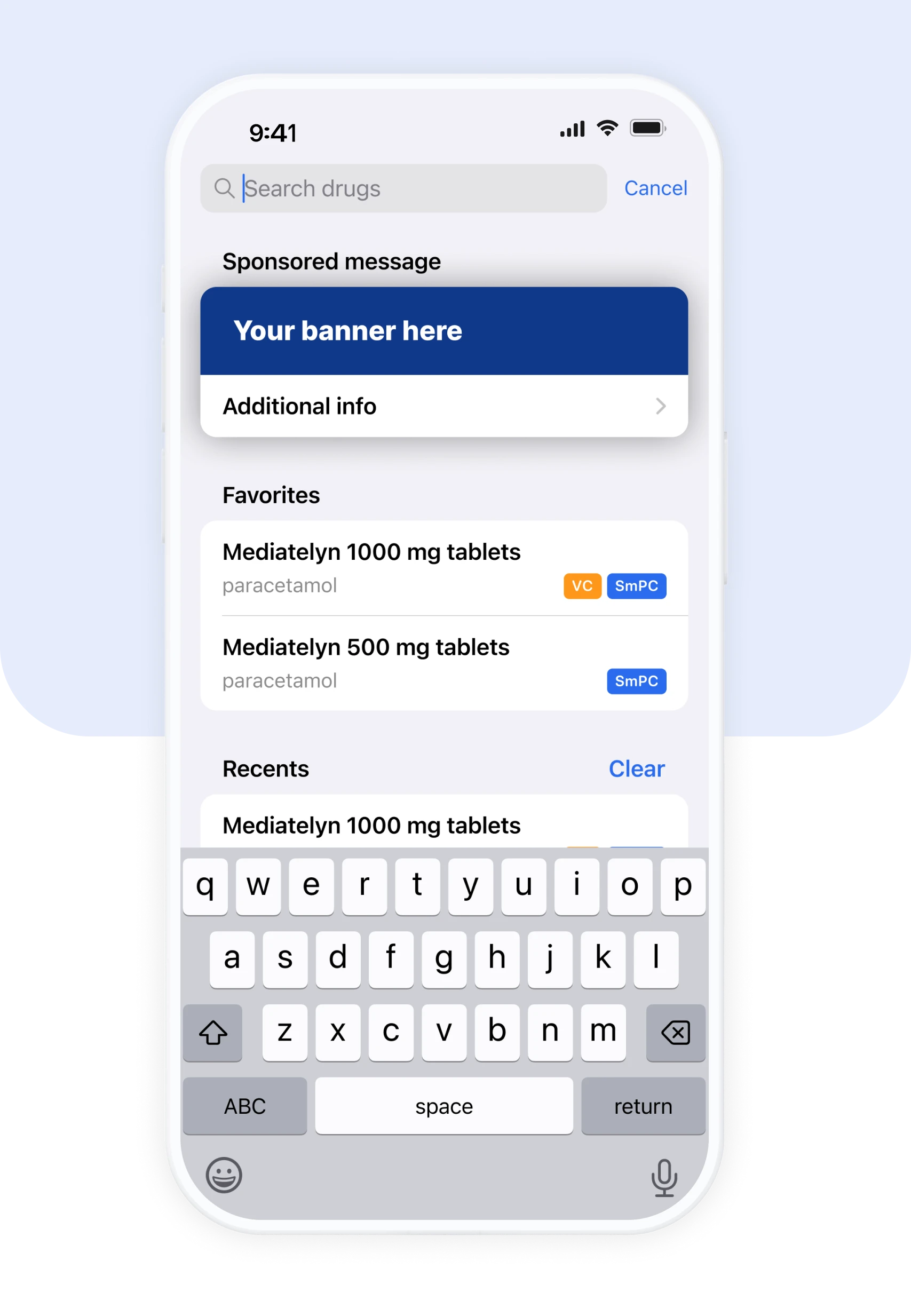
A Search banner is displayed while the search mode is active and user searches for content inside the app.
About CME static banner
A CME banner is displayed when user opens a specific education.
If the education is accredited, the banner may include only the logotype.
Links options
Format
JPG or PNG image.
Size
We offer one size option for both Search and CME static banner:
Small
1080 x 195 px
Prioritise clarity and readability
Make your message easy to understand at a glance. Avoid cluttered designs or excessive text.
Use appropriate text size
To ensure legibility on all screen sizes, we recommend using a minimum font size of 8pt.
Match the banner dimensions exactly
Always design your creative to fit the exact dimensions of the banner placement you’ve selected. This ensures optimal display across devices.
Maximize drug name visibility
For better recognition, the drug name should occupy the most prominent space on the banner.
Animated banner example:
When creating a GIF banner, it’s important to balance motion with clarity and user comfort. Follow these best practices to ensure your animated banner stands out in the right way.
About
Front page animated banner is displayed every time a user opens the app and each time they return to the home screen during their session. This ensures maximum visibility and repeated exposure.
Links options
Guidelines
Format: animated graphic – GIF format
Max. file size: 500KB
Max. animation time: 15 seconds
recommended frame rate: from 10 fps to 24 fps – if your file size is over 500 KB, use lower frame rate (fps)
Size
We offer two different size options for Home page animated banner:
Small
1080 x 195 px
Medium
1080 x 405 px
About
Tool animated banner is displayed every time a user opens a specific tool in the Mediately app.
Links options
Guidelines
Format: animated graphic – GIF format
Max. file size: 500KB
Max. animation time: 15 seconds
recommended frame rate: from 10 fps to 24 fps – if your file size is over 500 KB, use lower frame rate (fps)
Size
We offer two different size options for Tool animated banner:
Small
1080 x 195 px
Medium
1080 x 405 px
Use smooth and subtle animation
Avoid fast-paced transitions, flashing effects, or visual clutter. Motion should enhance the message, not distract from it.
Prioritize readability
Ensure all text elements are clear and readable throughout the animation. Each key message or frame should remain on screen for at least 3 seconds to allow users enough time to process the content.
Keep it simple and user-friendly
The recommended structure is a 3-frame sequence, with each frame shown for 5 seconds, using gentle fade transitions between them for a polished, seamless experience.
Keep it simple and user-friendly
The recommended structure is a 3-frame sequence, with each frame shown for 5 seconds, using gentle fade transitions between them for a polished, seamless experience.
Stay on brand – and on spec
Match the banner’s dimensions exactly and use animations that align with your brand’s visual identity. This maintains both professional integrity and visual consistency.
About
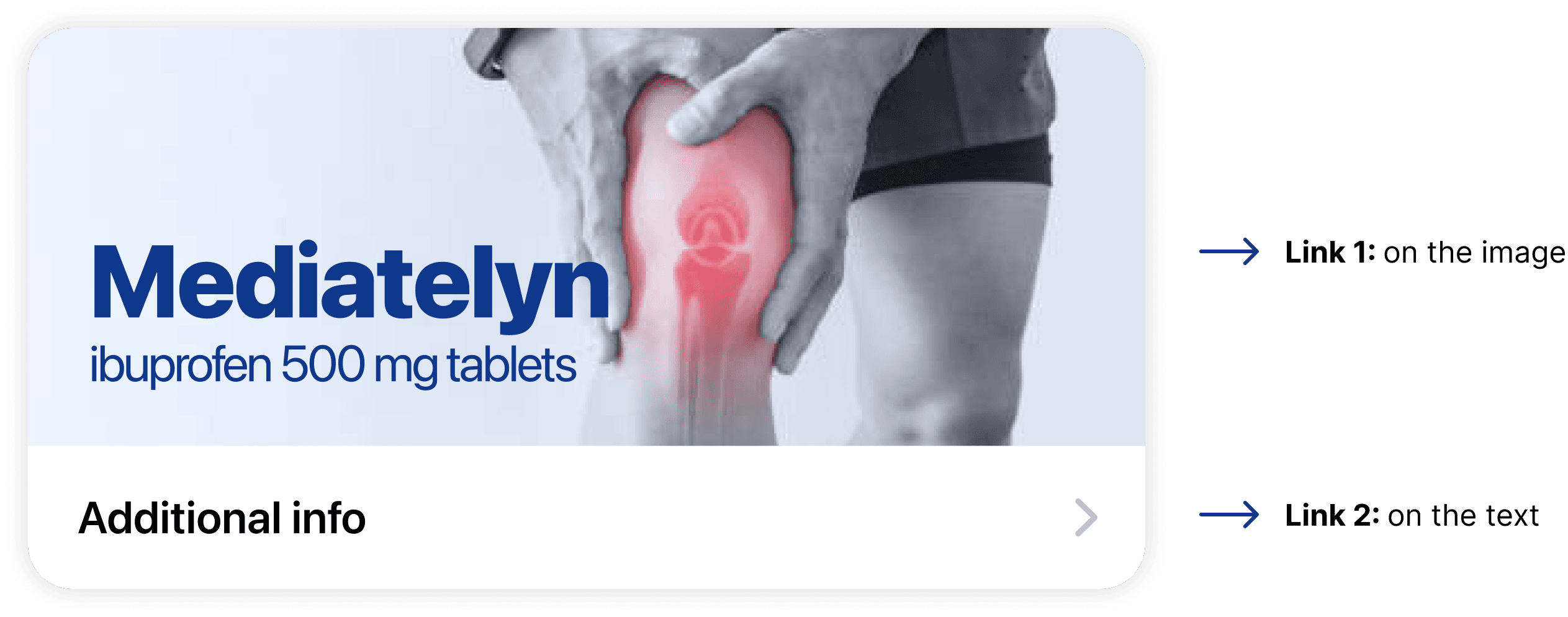
Each banner may include up to two links – one on the image and another one on the text below the image (optional).
Links options
There are two ways to set up links on the banner:
One link: the same link is used for both the image and the text
Make sure to provide the URL of where the link should lead to when clicked.
Two separate links: different links for the image and the text
Make sure to provide two URLs and specify which one should be applied to the image and which one to the text.
What happens when the link is clicked?
There are three possible options for what the link does:
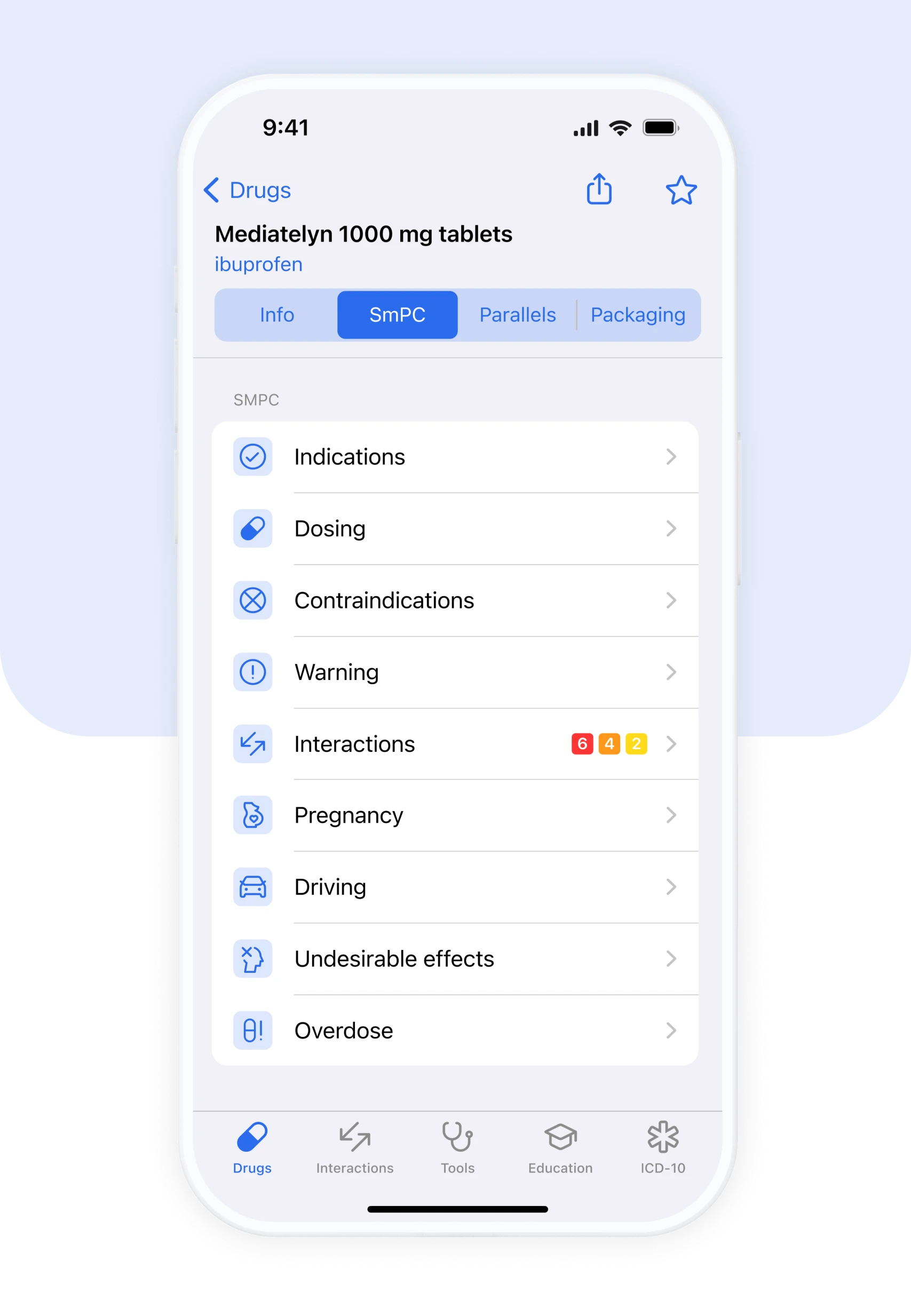
Opens SmPC in the app
The banner leads to the SmPC of the advertised drug inside the Mediately app.
Please specify exactly which drug (mg/pack) you will be advertising in.
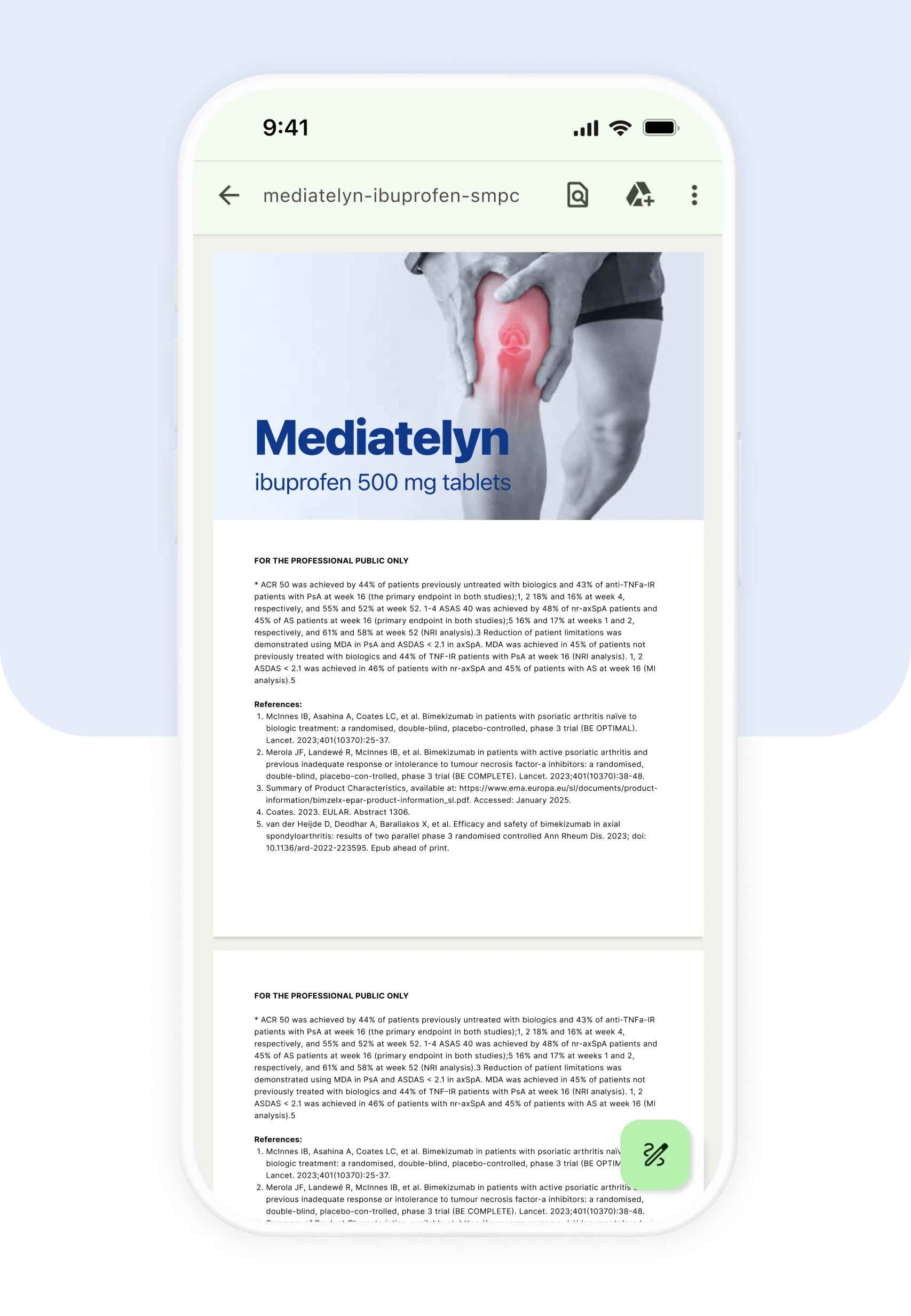
Shows a PDF document
The banner leads to a PDF document. It can be a leaflet with drug information including SmPC, or simply SmPC info in a PDF format.
Prepare the PDF as follows:
A4 format
readable on a mobile phone
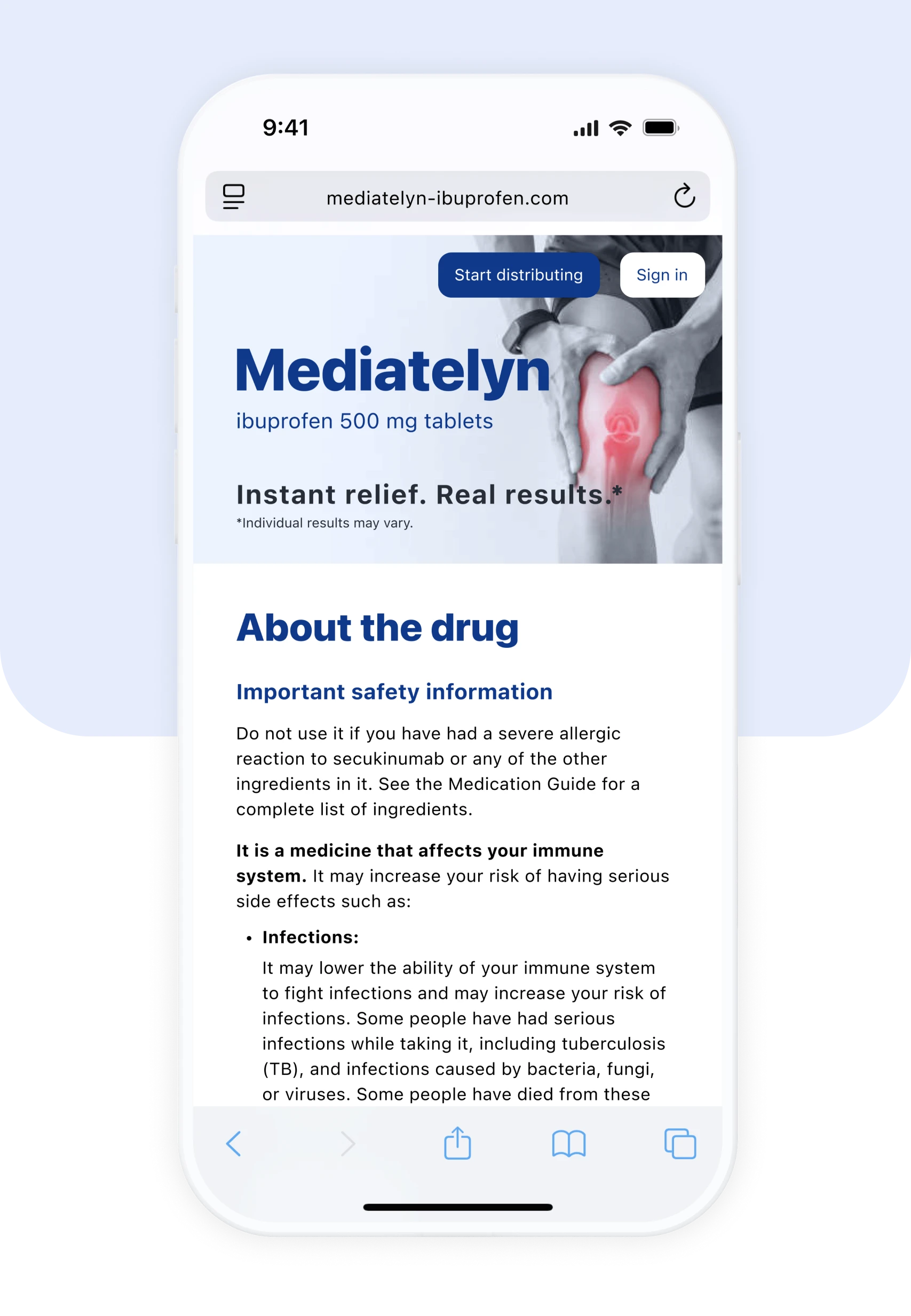
Leads to a website
The banner leads to a website where the SmPC information is presented.
Provide the URL of the webpage to which you want the banner to lead.
About
A pop-up message is displayed at specific moments within the Mediately app, targeting the right audience in the right place.
Links options
There are two ways to set up links on the pop-up message:
One link: on the button, always included
Make sure to provide the URL of where the link on the button should lead to.
Two separate links: different links for the button and the text
Make sure to provide two URLs and specify which one should be applied to the button and which one to the text.

Guidelines
Text:
Format: Word or Google Docs
Title: max. 40 characters
Description text: max. 130 characters
Button text: max. 20 characters
Additional link text: max. 20 characters
Image:
Static: PNG or JPG format
Animated/moving: GIF format
Width: at least 1000 px
Suggested ratios: 16:9, 4:3, or 1:1
File size: max 10 MB
Submit the text file and the image separately! Title and description text must not be embedded in the image.
Content options
Regarding the pop-up content elements, there are three options to choose from:
Text only
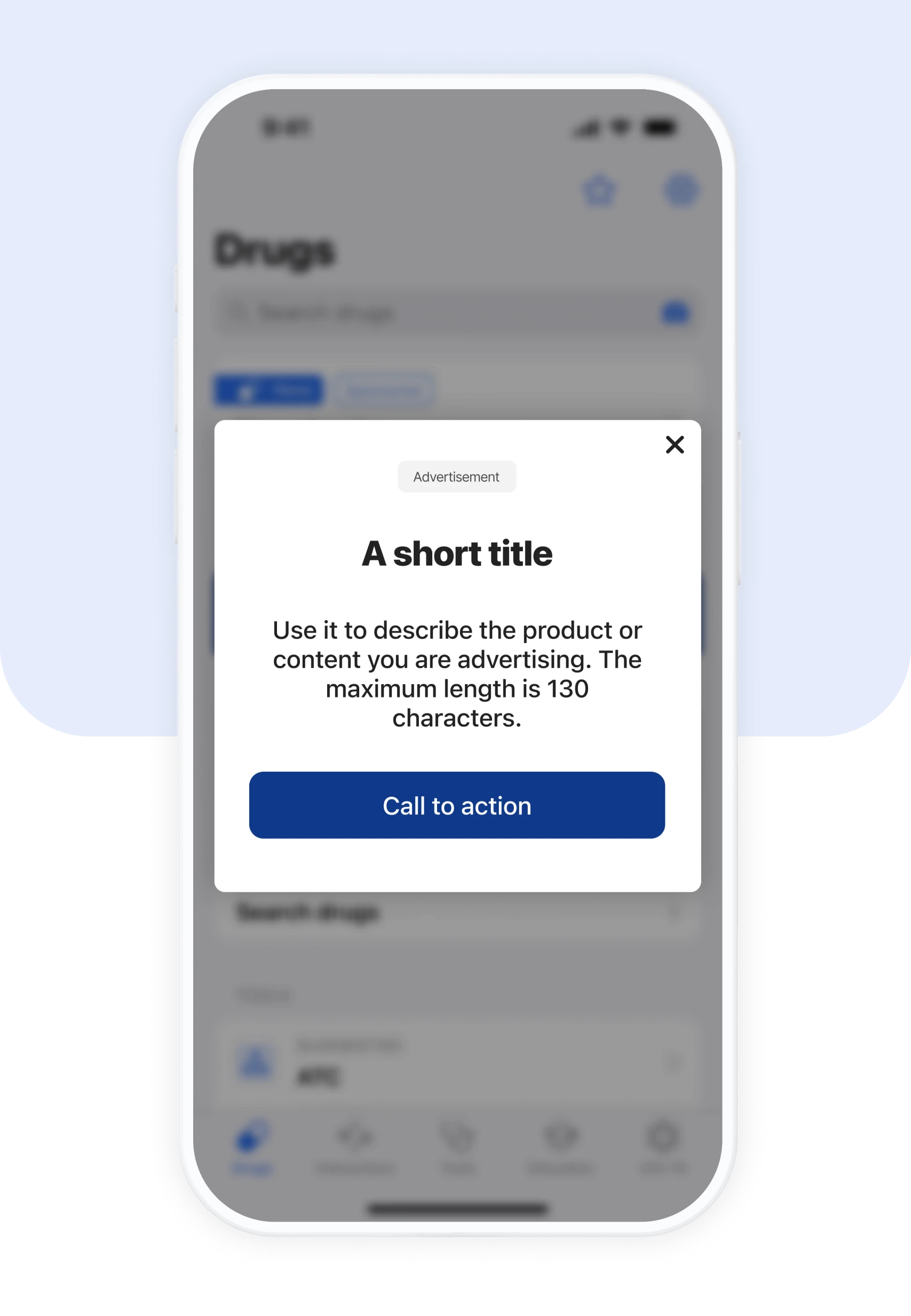
Title + image
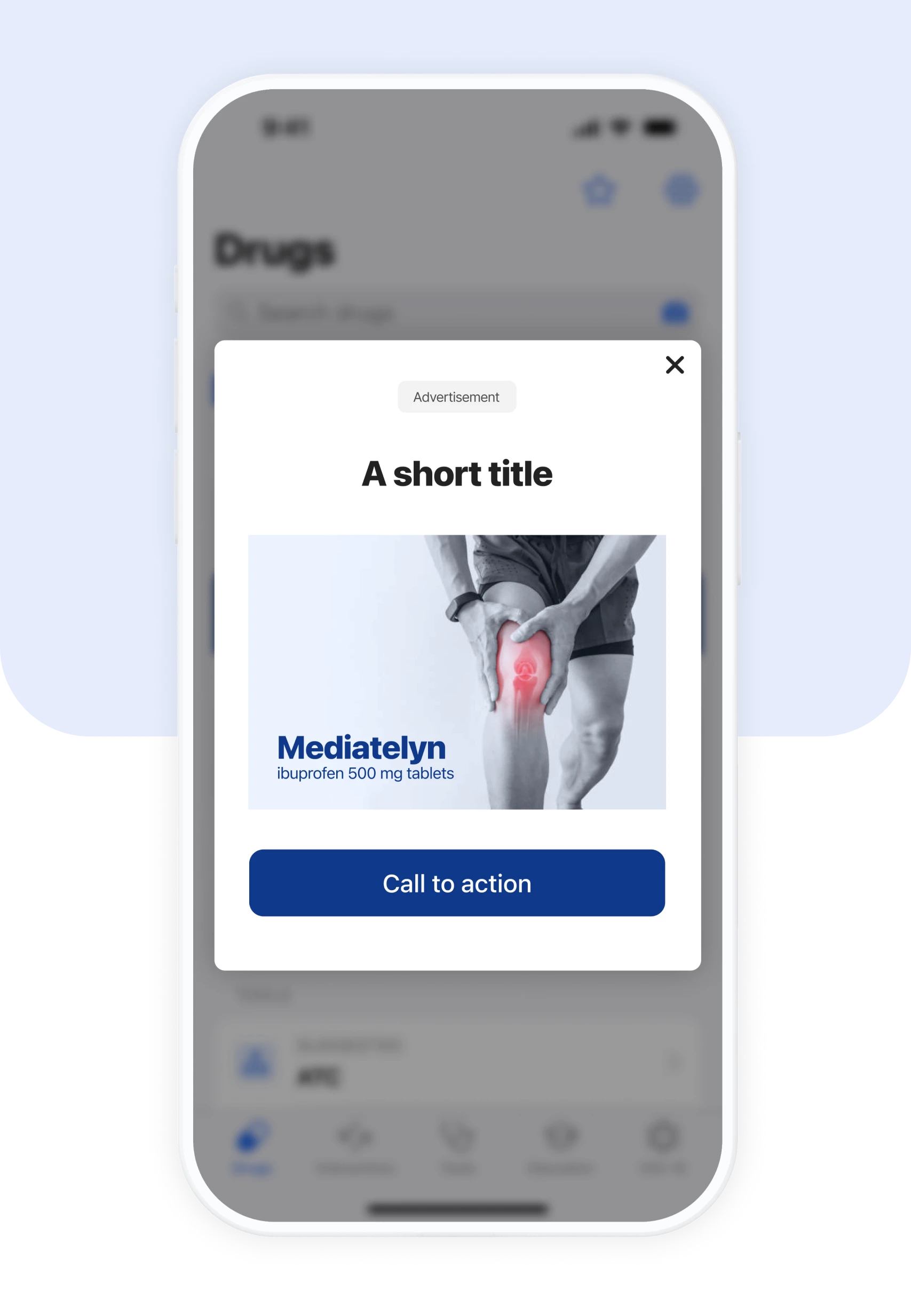
Title + image + text
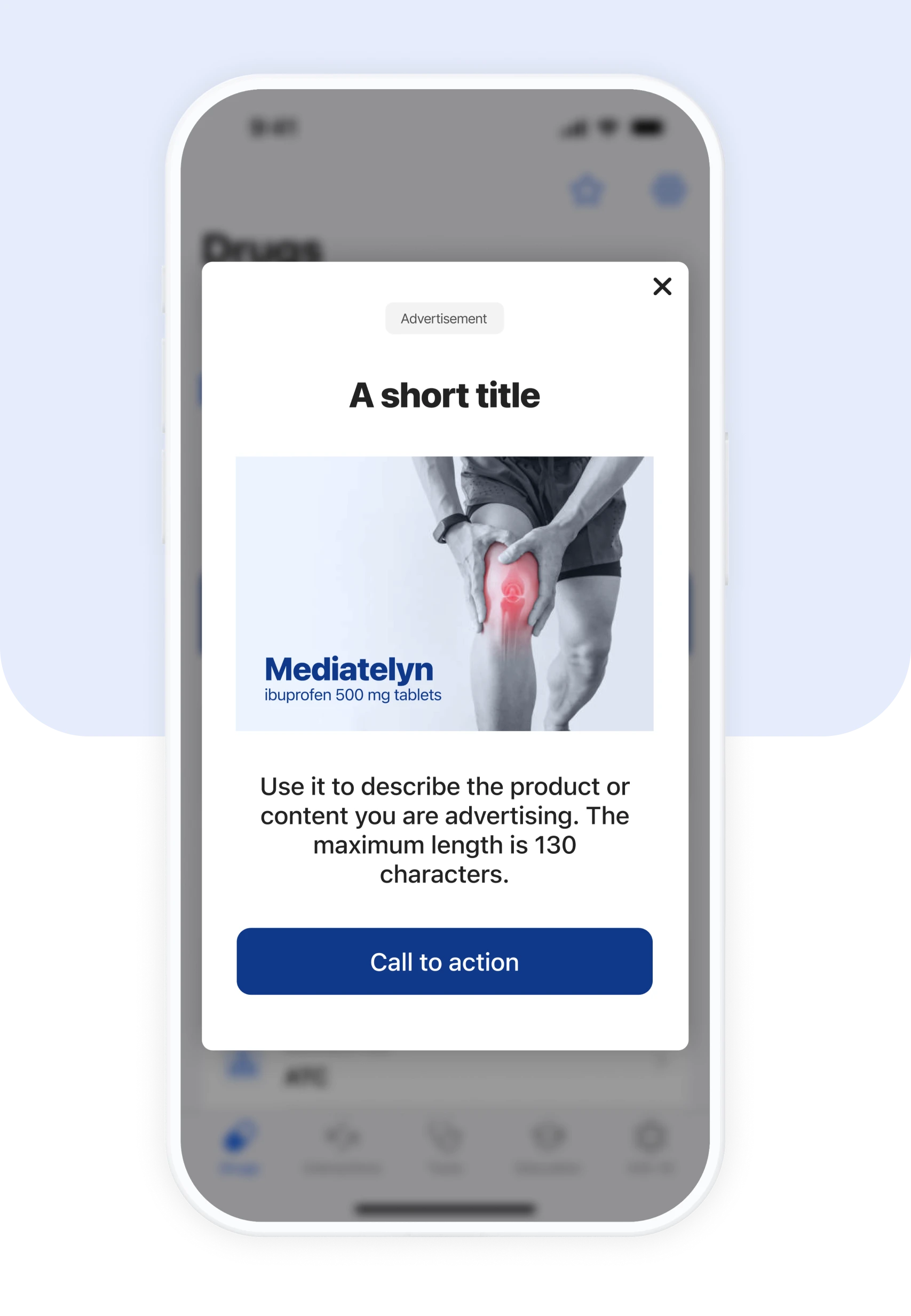
Note! The button (Link 1) is always included, regardless of the content option you choose. The additional link (Link 2) is not included by default but is available for any option.
Make your communication in the Mediately app stand out with sharp messaging and polished visuals. Here are final text and image guidelines to help you design high-impact messages users will engage with.
Title
Max. 40 characters
Keep it short, clear, and action-oriented
Examples: "New Guidelines Available!", or "Try Our Latest Tool"
Description
Max. 130 characters
Communicate the main benefit only
Banners font size: min. 8pt
Button and additional link
Max. 20 characters
Keep it short and straightforward
Examples: “New guidelines here”, or “Learn more”
Format
Static: PNG or JPG
Animated: GIF
Max. file size: 10 MB
Design tips
Keep it visually clean and brand-consistent
Use high contrast between text and background to ensure maximum readability
Avoid placing essential information in corners (may be cropped on smaller screens)
Use smooth transitions for animated visuals, avoid flashy or fast-blinking elements
Ensure your text and visual support the same message.
Optimize for mobile viewing – test on smaller screens.
Use animations thoughtfully – you want to draw attention, not distract.
Include clear calls to action with or without links.